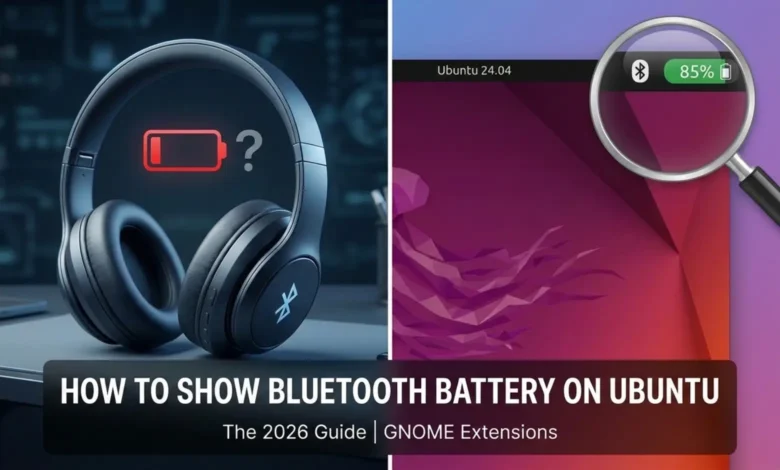
Ubuntu, GNOME, Bluetooth, battery indicators — and why Snap browsers make this harder than it should be.
If you’ve connected Bluetooth headphones, speakers, or even peripherals like a mouse or keyboard to Ubuntu and found yourself wondering “where’s the battery indicator?”, you’re experiencing one of GNOME’s more puzzling design decisions. Much like the challenges of keeping legacy NVIDIA hardware alive in 2026, some Linux features are technically present but require a bit of manual ‘unlocking’ to be usable in the UI. Your system can read and use battery info — but it only shows it when the device reports it in certain ways the UI understands.
This guide explains why this happens, how to fix it properly, and why the solution in 2026 is simpler than you might expect.
TL;DR:
- Ubuntu can read battery percentage from compatible Bluetooth devices (via BlueZ)
- GNOME does not show it by default
- The clean solution in 2026:
- ✅ Use Bluetooth Battery Meter (GNOME Shell extension)
- ✅ Manage it with Extension Manager
- 🚫 Do not rely on Snap browsers for extension installs
- 🚫 Browser integration is only for installation — not runtime
For the complete picture including why browsers are involved at all and what to do when things don’t work, read on. 👇
Understanding the Problem
Here’s the frustrating reality: when you connect Bluetooth headphones, speakers, or other battery-powered devices (like mice or keyboards) to Ubuntu, the system UI often shows absolutely no battery information. No percentage. No icon. No indicator. Nothing.
This leads many users to assume Linux simply can’t read Bluetooth battery levels.
That assumption is wrong.
Ubuntu’s Bluetooth stack (BlueZ) has been capable of reading battery information from compatible devices for years. GNOME Shell does receive this data — it just doesn’t surface it in the default UI. This isn’t a bug or an oversight; it’s an intentional design choice.
Why Doesn’t GNOME Show Bluetooth Battery by Default?
GNOME’s design philosophy prioritizes a minimal, distraction-free interface, and that influences what gets shown in the system UI. The developers made a deliberate decision not to display Bluetooth battery indicators because:
- Inconsistent reporting from devices: Different Bluetooth devices report battery levels in very different ways, and many don’t report it at all without special support.
- Vendor-specific implementations: Some manufacturers use non-standard methods (or none at all) for exposing battery level — meaning GNOME can’t reliably display it without extension support.
- Historical reliability issues: Early Bluetooth battery reporting was spotty, and integrating inconsistent signals into a clean UI is challenging for a general-purpose shell. (This aligns with observed extension docs noting inconsistent device reporting.)
- Interface minimalism: GNOME prefers showing only core system status by default, with optional details available via Settings or extensions.
So, GNOME does receive battery data from BlueZ when it’s available, but it doesn’t show it in the default panel or quick settings. If you want this information in your desktop UI, you’ll need to install an extension like Bluetooth Battery Meter, which surfaces it in a consistent way.
Step 1: Verify Your Device Actually Reports Battery Data
Before touching any UI extensions, confirm that your Bluetooth device actually sends battery information to Ubuntu. But be warned: not all devices do this — and no extension can magically create data that doesn’t exist.
This applies not only to headphones and speakers, but also to other battery-powered Bluetooth devices like mice, keyboards, and game controllers.
Using bluetoothctl to Check Battery Support
Open a terminal and launch the Bluetooth control utility:
bluetoothctl
Pressing Enter starts bluetoothctl in interactive mode. You’ll see real-time Bluetooth events scrolling by — controller status, device connections, audio transport states. This is normal behavior, not an error. The terminal isn’t frozen; it’s actively monitoring your Bluetooth subsystem.
You’re now connected directly to the system Bluetooth daemon (bluetoothd). You can issue commands in this interactive session until you exit with quit, exit, or Ctrl + D.
First, list all paired Bluetooth devices to find their MAC addresses:
devices
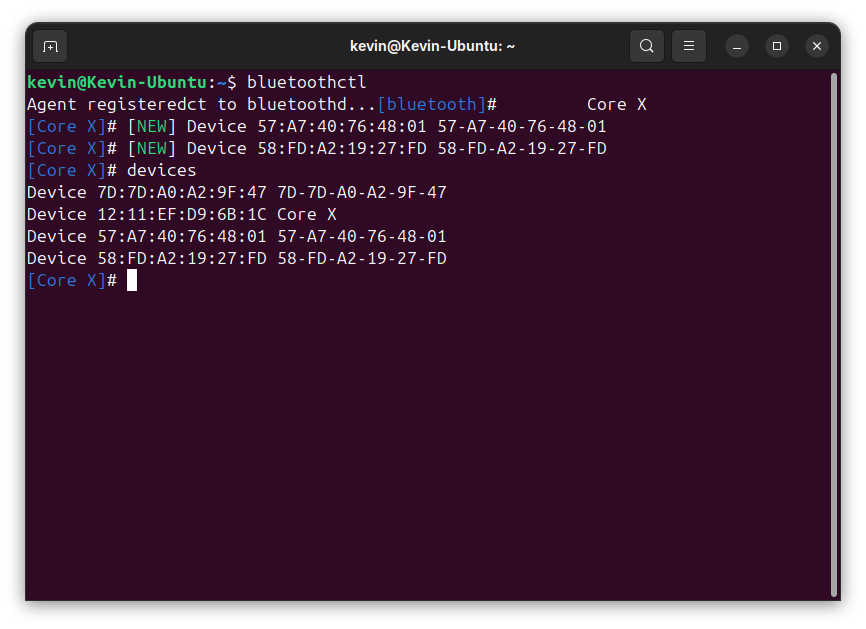
bluetoothctl command to ensure Ubuntu actually “sees” the connected hardware.
You’ll see output showing device names and their MAC addresses (formatted like 12:34:56:78:9A:BC). Now check detailed information for a specific device:
info <MAC_ADDRESS>
Replace <MAC_ADDRESS> with your device’s actual address (for example, info 12:11:EF:D9:6B:1C).
Look for a line that says Battery Percentage: in the output. A complete device info block could look like this:
Device 12:11:EF:D9:6B:1C (public)
	Name: Core X
	Alias: Core X
	Class: 0x00240418 (2360344)
	Icon: audio-headphones
	Paired: yes
	Bonded: yes
	Trusted: yes
	Blocked: no
	Connected: yes
	LegacyPairing: no
	UUID: Audio Sink                (0000110b-0000-1000-8000-00805f9b34fb)
	UUID: A/V Remote Control Target (0000110c-0000-1000-8000-00805f9b34fb)
	UUID: Advanced Audio Distribu.. (0000110d-0000-1000-8000-00805f9b34fb)
	UUID: A/V Remote Control        (0000110e-0000-1000-8000-00805f9b34fb)
	UUID: Handsfree                 (0000111e-0000-1000-8000-00805f9b34fb)
	UUID: PnP Information           (00001200-0000-1000-8000-00805f9b34fb)
	Modalias: bluetooth:v0642p0220d0001
	Battery Percentage: 0x50 (80)
Here, the critical line is:
Battery Percentage: 0x50 (80)
This shows the raw hexadecimal value (0x50) and the decimal percentage (80).
Quick Commands (Non-Interactive)
If you don’t want to enter interactive mode, you can run bluetoothctl commands directly from your shell.
List paired devices:
bluetoothctl devices
Check device info:
bluetoothctl info <DEVICE_MAC>
Or, if you only want to print the battery percentage line after you’ve identified the correct MAC address:
bluetoothctl info 12:11:EF:D9:6B:1C | grep Battery
This pipes the device info through grep and shows only the battery line.
What the Results Mean
✅ If you see Battery Percentage: in the output:
- Your device reports battery data via the Bluetooth Battery Service (BAS) or a compatible mechanism
- BlueZ is successfully receiving battery data
- GNOME Shell extensions will be able to display this information
- GNOME just isn’t showing it to you by default
❌ If you don’t see Battery Percentage: anywhere:
- The device does not expose battery information through standard Bluetooth protocols
- No extension, no tool or configuration change can display data that isn’t reported
- ⚠️ Some devices may require experimental BlueZ features (covered later in the troubleshooting section)
It’s also worth noting: if a device shows battery percentage on Windows, macOS, Android, or iOS, it should also report battery data on Linux as well — but some vendors rely on proprietary methods that only work with manufacturer-specific drivers.
Step 2: The Clean 2026 Solution
In 2026, the cleanest and most straightforward way to install GNOME extensions on Ubuntu is through Extension Manager. It is a native GNOME application that completely bypasses the traditional browser-based installation workflow. Instead of relying on browser add-ons and background connectors, you manage everything from a dedicated desktop app that integrates naturally with the GNOME environment.
Why Extension Manager Is Better
Extension Manager removes much of the friction that has historically made GNOME extensions confusing to set up. You do not need a web browser at all, which means it works regardless of whether your browser is installed as a Snap, Flatpak, or traditional package. There is no connector to configure, no browser extension to keep in sync, and no extra setup steps just to make the basics work. The interface is intuitive and visual, making it easy to browse, install, update, or remove extensions in one place.
There are typically no hidden dependencies on browser extensions, and in most cases you avoid the extra configuration steps that commonly lead to troubleshooting later. The experience is more reliable, more self-contained, and far easier to reason about than the old workflow. For many users, Extension Manager feels like how GNOME extension management should have worked from the beginning, and in 2026, it is the most practical option available.
Installing Extension Manager
On Ubuntu, Extension Manager is available directly from the official repositories:
sudo apt install gnome-shell-extension-manager
That’s it. No additional configuration, no connector packages, no browser required, no Snap issues.
Installing Bluetooth Battery Meter
Once Extension Manager is installed:
- Open Extension Manager from your application menu
- Click the Browse tab
- Search for Bluetooth Battery Meter
- Click Install
- The extension will download and install automatically
- Toggle it On if it isn’t enabled by default
Done. You now have Bluetooth battery indicators in your GNOME Shell — for headphones, speakers, and other supported Bluetooth devices like mice and keyboards.
The battery percentage appears in two places:
- Top bar: Icons for each connected Bluetooth device with battery indicators
- Quick Settings: Battery information inside the Bluetooth menu when expanded
Configuring Bluetooth Battery Meter
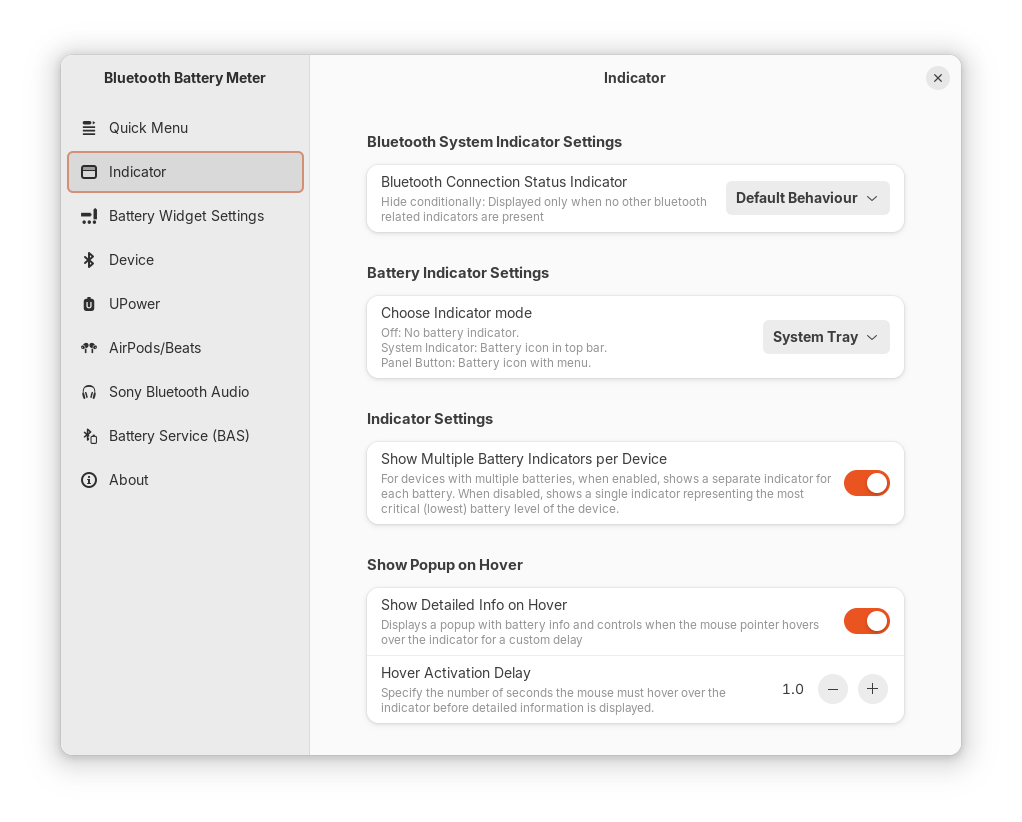
Click the gear icon next to the extension in Extension Manager to open Bluetooth Battery Meter’s Preferences. From here, you can customize how battery information is displayed and where it appears in the GNOME Shell UI.
Common options include:
- Display format: Show battery level as percentage text, an icon, or both
- Data source: Select how battery data is retrieved (varies by device support)
- Indicator position: Control where the icon appears in the top bar
- Per-device settings: Enable or disable battery indicators for individual Bluetooth devices
The extension supports multiple battery data sources because Bluetooth devices expose battery information in different ways:
- BlueZ (
bluetoothctl): Standard BlueZ battery reporting (the most common case) - UPower: Used by some devices that integrate with system power management (for example, certain Logitech peripherals)
- GATT Battery Service (BAS): Direct access to the Bluetooth GATT Battery Service, commonly used by split keyboards and some low-power peripherals
Which source works depends entirely on how the device reports its battery level — there’s no single method that works for everything.
Important Note About Experimental Features
When you open the Preferences window, the Quick Menu tab is selected by default (it’s the first tab). At the top of this tab, you’ll see a clearly marked Note! from the extension author:
Certain Bluetooth devices do not report battery level until BlueZ’s experimental features are enabled in system. Check Readme for details.
This is expected behavior, not a bug.
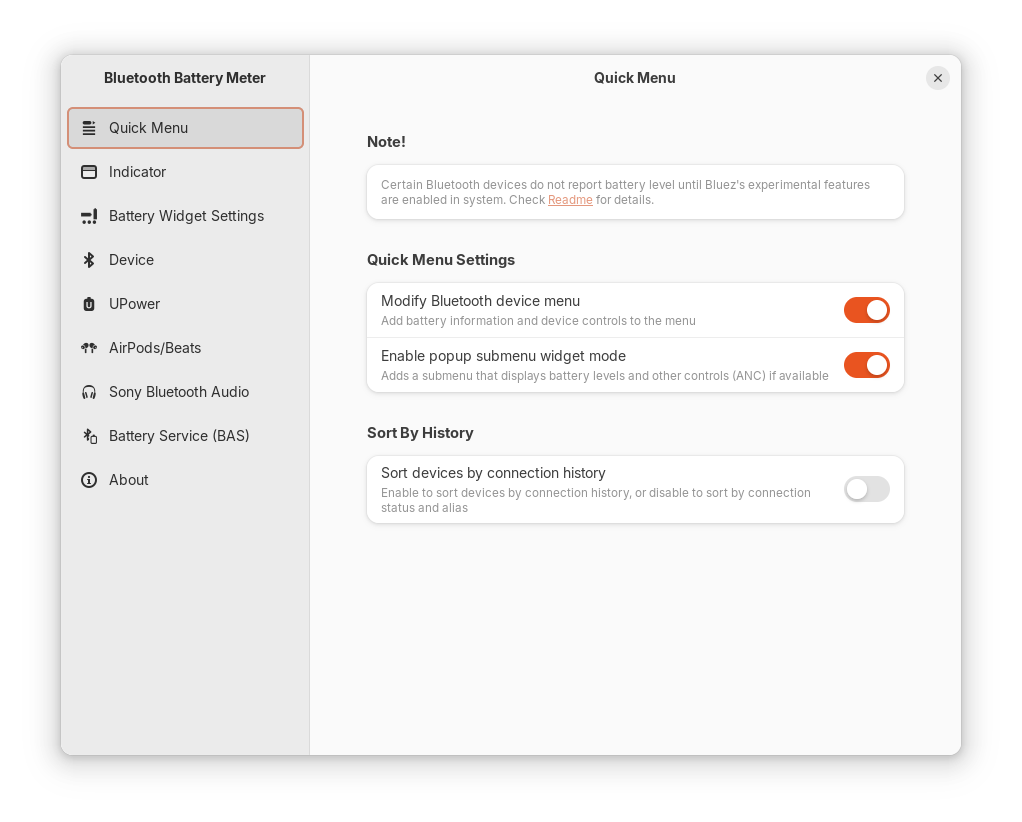
Some Bluetooth devices — especially newer peripherals or those using non-standard reporting — only expose battery information when BlueZ experimental features are enabled at the system level.
As mentioned earlier, you can verify whether your device reports battery data at all using bluetoothctl. If it doesn’t, enabling experimental features may help. We’ll cover this in more detail in the Troubleshooting section below.
If the Extension Doesn’t Appear
If you don’t see the battery indicator immediately after installation, it usually means GNOME Shell hasn’t reloaded the extension yet.
Restart GNOME Shell:
- Press Alt + F2
- Type r
- Press Enter
This reloads GNOME Shell and forces all extensions (including Bluetooth Battery Meter) to initialize.
Alt + F2 → r restart shortcut doesn’t always work. In that case, simply log out and log back in instead. GNOME extensions are loaded at session startup, so logging out ensures the extension is properly initialized.
If you still don’t see the indicator after restarting/re-logging in:
- Open Extension Manager and make sure Bluetooth Battery Meter is enabled.
- Check that the extension version supports your GNOME Shell version (most recent versions of Bluetooth Battery Meter support GNOME 43–48).
Reporting Issues
If you encounter bugs or unexpected behavior with Bluetooth Battery Meter, the best place to report them is on the official GitHub repository. The maintainer is quite responsive and actively develops the extension.
A few practical tips when reporting issues:
- Include your GNOME Shell version (e.g., GNOME 46) and Ubuntu version (e.g., Ubuntu 24.04.3 LTS)
- Describe what you tried (install steps, restart steps)
- If possible, include a screenshot or error logs
- You can view extension-related logs via:
journalctl -f -o cat /usr/bin/gnome-shell
→ This shows GNOME Shell logs in real time!
- You can view extension-related logs via:
Many users find this helpful when troubleshooting why an extension doesn’t appear or isn’t reporting battery data properly.
Alternative: Simpler “Bluetooth battery indicator” Extension
If Bluetooth Battery Meter feels too feature-rich for your needs, there’s a simpler alternative that focuses on just showing the battery percentage — it’s Bluetooth battery indicator.
This extension provides basic battery display without the advanced features like UPower integration or socket-based communication for AirPods. Install it the same way through Extension Manager — search for “Bluetooth battery” and click “Install.”
The simpler extension is a good choice if:
- You just want a basic percentage display
- You don’t need per-device customization
- You prefer minimal configuration
Both extensions work well; choose based on how much control you want.
The Browser Method (Why It’s Complicated)
You might wonder: “Why do GNOME extension websites exist if Extension Manager is the better solution?”
That’s because the browser-based installation method predates Extension Manager by many years. So below’s how it works and why it’s confusing:
How Browser Installation Was Designed
Historically, the workflow was:
- Visit https://extensions.gnome.org/ in a web browser
- Install a browser extension called GNOME Shell integration
- Install a native connector package (
gnome-browser-connector) - The browser extension talks to the native connector via Native Messaging
- The native connector sends DBus messages to GNOME Shell
- GNOME Shell installs/removes/enables/disables extensions
This was the only method before Extension Manager existed.
The Crucial Distinction Everyone Gets Wrong
Here’s what trips people up:
The browser is only used to install extensions — never to run them.
Once installed, GNOME extensions run inside GNOME Shell, completely independent of any browser. The browser is just a remote control for telling GNOME Shell what to install.
At login, GNOME Shell:
- Reads the list of enabled extensions from dconf (GNOME’s settings database)
- Loads each enabled extension’s code
- Runs the extensions for your entire session
The browser plays zero role in this. You could just uninstall your browser entirely and installed extensions would continue working normally.
The Snap Browser Problem
By default, Ubuntu installs both Firefox and Chromium as Snap packages. Snap is a sandboxed packaging format designed to improve security by isolating applications from the rest of the system. While this approach has benefits, it introduces a major limitation when it comes to GNOME browser integration.
The problem is that Snap-packaged browsers cannot access gnome-browser-connector, which is installed on the host system. Because Snap applications run inside a restricted sandbox, they have limited file system access and are not allowed to execute binaries outside that sandbox. GNOME Shell integration relies on native messaging, which requires the browser to launch/execute the connector binary directly. Snap confinement blocks this kind of cross-boundary execution entirely.
As a result, even if you install the connector manually using:
sudo apt install gnome-browser-connector
…it still won’t work with Snap versions of Firefox or Chromium. This is not a misconfiguration or a missing setup step. It is a fundamental security limitation of how Snap confinement works by design.
Workaround: Use .deb Browsers
If you still prefer the browser installation method despite its complexity, install Google Chrome from the official .deb package:
- Download Chrome from https://www.google.com/chrome/
- Select “64 bit .deb (For Debian/Ubuntu)” and click “Accept and Install” to download
- Install it with
sudo apt install ./google-chrome-stable_current_amd64.deb - Install the connector:
sudo apt install gnome-browser-connector - Install GNOME Shell Integration browser extension
- Visit Bluetooth Battery Meter
- Toggle the extension ON to install it
You can verify installed extensions at: https://extensions.gnome.org/local/
ℹ️ Technical aside: Firefox Snap did gain “native messaging” support in November 2022 through the xdg-desktop-portal system. It technically works now, but the implementation can still be finicky and requires additional xdg-desktop-portal packages. For most users, Extension Manager remains the simpler path.
Should You Disable Browser Integration?
If you installed Google Chrome and the GNOME Shell Integration browser extension only to install GNOME extensions, you can safely disable the browser extension once installation is complete. It is not required for extensions to function after they are installed on your system.
The reason is simple: GNOME extensions do not run in your browser. They run directly inside GNOME Shell, which means the browser extension plays no role at runtime. Its only purpose is to act as a bridge during installation, and once that step is done, GNOME Shell loads and manages extensions on its own.
Keeping the browser extension enabled also provides little benefit and can sometimes be counterproductive. It continues to monitor for extension-related activity even when you are not actively managing extensions, which uses a small amount of system resources. More importantly, it often causes confusion, leading people to believe their installed extensions somehow depend on the browser to keep working.
In short, the GNOME Shell Integration extension is just an installer. After your extensions are installed, GNOME Shell operates independently, and the browser integration is no longer necessary.
How Extensions Actually Start: The GNOME Shell Mechanism
Understanding how GNOME extensions actually run helps clarify why browsers don’t matter:
At session login, GNOME Shell follows this sequence:
- Read dconf database: GNOME checks
org.gnome.shell.enabled-extensionsin your user settings - Find extension files: Each extension UUID maps to a directory in
~/.local/share/gnome-shell/extensions/ - Load JavaScript code: GNOME Shell’s JavaScript interpreter (GJS) loads each extension’s
extension.js - Execute
enable()function: Each extension’senable()method runs, activating its features - Keep running: Extensions remain active for your entire session
No browser. No background service. No autostart script. Just GNOME Shell reading a setting and loading JavaScript.
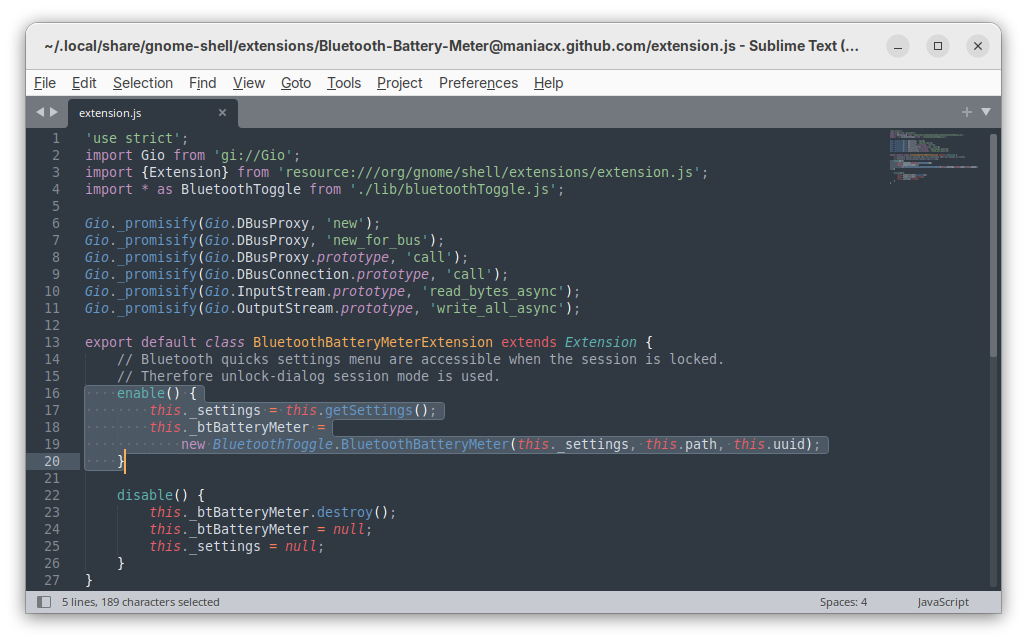
As long as Bluetooth Battery Meter is enabled, it will always start automatically.
So when you disable an extension in Extension Manager, it updates dconf to remove the extension from the enabled list. The next time GNOME Shell restarts (logout/login or Alt + F2 → r), it skips loading that extension.
Managing Extensions
You have 3 good options for managing GNOME extensions going forward:
GUI Method 1: Built-in Extensions App
GNOME includes a basic Extensions app (usually named “Extensions” in your app menu) that shows installed extensions and lets you enable/disable them. This app is minimal — it doesn’t browse or install new extensions, only manages what you already have.
GUI Method 2: Extension Manager (Recommended)
Extension Manager provides complete functionality:
- Browse and search thousands of extensions
- Install, update, and remove extensions
- Configure extension settings (when available)
- View extension details and compatibility information
- All without touching a web browser
This is the most user-friendly option for most people.
Command Line Method
For scripting, automation, or when you prefer the terminal:
# List all installed extensions
gnome-extensions list

# List only enabled extensions
gnome-extensions list --enabled

# Enable an extension (replace with actual UUID)
gnome-extensions enable <UUID>

# Disable an extension
gnome-extensions disable <UUID>

# Show detailed information about an extension
gnome-extensions info <UUID>

# Uninstall an extension
gnome-extensions uninstall <UUID>
The UUID is the extension’s unique identifier, visible in Extension Manager or when you run gnome-extensions list.
Understanding the Architecture: How Everything Connects
Thinking about the complete system helps troubleshoot issues and understand why certain things work the way they do:
Bluetooth Device (headphones, speaker, keyboard)
   ↓
   │ Reports battery via Bluetooth protocol
   │ (BAS - Battery Service, or vendor-specific)
   ↓
BlueZ (system Bluetooth stack)
   ↓
   │ Exposes battery data via DBus API
   │ Interface: org.bluez.Battery1
   ↓
GNOME Shell
   ↓
   │ Reads DBus but doesn't display by default
   │ Makes data available to extensions
   ↓
Bluetooth Battery Meter Extension
   ↓
   │ Queries battery data from BlueZ
   │ Renders UI elements (icons, text)
   ↓
GNOME Shell Top Bar & Quick Settings
Notice the browser appears nowhere in this chain, that’s because it’s simply not part of the runtime architecture.
The browser (when used) only communicates with GNOME Shell via DBus to say “install this extension” or “remove this extension.” Once that command is issued, the browser’s job is done.
Troubleshooting
Problem: No Battery Percentage in bluetoothctl
If bluetoothctl info <MAC> doesn’t show a “Battery Percentage” line, your device might need experimental BlueZ features enabled.
Some Bluetooth devices only report battery information when BlueZ’s experimental features are active:
sudo nano /etc/bluetooth/main.conf
Under the [General] section, find this part:
# Enables D-Bus experimental interfaces
# Possible values: true or false
#Experimental = false
Here, simply uncomment the Experimental = false and change the value to true:
Experimental = true
Save the file, then restart the Bluetooth service:
sudo systemctl restart bluetooth
Reconnect your Bluetooth device and check bluetoothctl info again.
Problem: Extension Shows No Devices
If Bluetooth Battery Meter is installed but shows nothing:
- Verify your device is connected: Check GNOME Settings → Bluetooth
- Check bluetoothctl: Run
bluetoothctl info <MAC>to confirm battery data exists - Restart GNOME Shell: Press Alt + F2, type
r, then press Enter - Check extension settings: Open Extension Manager → Bluetooth Battery Meter → Click the gear icon → Verify “Data source” is set to Auto
- Try logging out and back in: Sometimes extensions need a clean session start
Problem: Battery Percentage Seems Stuck
Many Bluetooth devices don’t report battery in smooth 1% increments. Manufacturer implementations vary widely:
- Some devices report in 10% increments (100, 90, 80, 70…)
- Others use 20% increments (100, 80, 60, 40…)
- Premium devices might use 5% increments (100, 95, 90, 85…)
- Very basic devices might only report “High/Medium/Low” mapped to rough percentages
This is hardware behavior, not an extension bug. If your headphones show 80% for an hour and then suddenly jump to 60%, that’s because the device itself only reports in 20% steps.
Problem: Works on Windows/Mac but Not Linux
If your device shows battery information on other operating systems but not on Ubuntu:
Possible causes:
- Vendor-specific protocols: Some manufacturers use proprietary battery reporting that only their drivers support
- HID++ protocol: Logitech devices often use HID++ which requires specific UPower support
- Apple devices: AirPods and Beats use proprietary Apple protocols that Bluetooth Battery Meter supports through enhanced mode
- Older Bluetooth versions: Very old BT 3.0 and earlier devices might not support standard battery services
Solutions:
- Enable BlueZ experimental features (see above)
- Try different data sources in extension preferences (Auto, bluetoothctl, UPower, GATT)
- Check if your specific device model has known Linux compatibility issues
- For Logitech devices, ensure UPower is installed:
sudo apt install upower
Problem: Extension Causes System Issues
If Bluetooth Battery Meter causes GNOME Shell crashes or freezes:
- Disable the extension: Open Extension Manager → Installed → Bluetooth Battery Meter → Toggle OFF
- Report the bug: Go to GitHub Issues with:
- Your Ubuntu version
- GNOME Shell version (
gnome-shell --version) - BlueZ version (
bluetoothctl --version) - Device model and manufacturer
- Steps to reproduce the crash
- Check for updates: Extension Manager shows if an update is available
- Try the simpler alternative: Install “Bluetooth battery indicator” instead if Bluetooth Battery Meter proves unstable
Key Takeaways: What You Need to Remember
Let’s distill everything down to the essentials:
About battery reporting:
- Ubuntu can read Bluetooth battery levels through BlueZ
- GNOME Shell chooses not to display them by default
- Not all Bluetooth devices report battery information — this is a hardware limitation
About installation:
- Extension Manager is the modern, correct solution for installing GNOME extensions
- The browser-based method still works but adds unnecessary complexity
- Snap browsers create compatibility issues that Extension Manager completely avoids
About how extensions work:
- Extensions run inside GNOME Shell, not in your browser
- The browser is only an installer, never involved at runtime
- You can safely disable browser integration after installing extensions
- GNOME Shell automatically loads enabled extensions at login
About troubleshooting:
- Always verify battery data exists in
bluetoothctl infobefore expecting extensions to show it - Enable BlueZ experimental features if standard protocols don’t work
- Different devices report battery in different increments (10%, 20%, etc.)
- Some vendor-specific implementations may never work on Linux
Final Thoughts
The fact that showing Bluetooth battery percentage on Ubuntu requires installing an extension might seem ridiculous if you’re coming from Windows or macOS where this works out of the box. But once you understand GNOME’s design philosophy and install the right tools, the experience is actually quite polished.
Extension Manager has made GNOME extensions significantly more accessible than the old browser-based method. If you’re new to GNOME, don’t let the terminology intimidate you — extensions are simply add-ons, and Extension Manager is your add-on store.
The Bluetooth battery indicator is just one small example of how GNOME extensions let you customize your desktop environment. Once you’re comfortable with Extension Manager, you’ll find thousands of extensions that can transform your Ubuntu experience.